How to flash a custom ROM on Poco M5 / Redmi 11 Prime 4G (Rock)

Shakib Universe
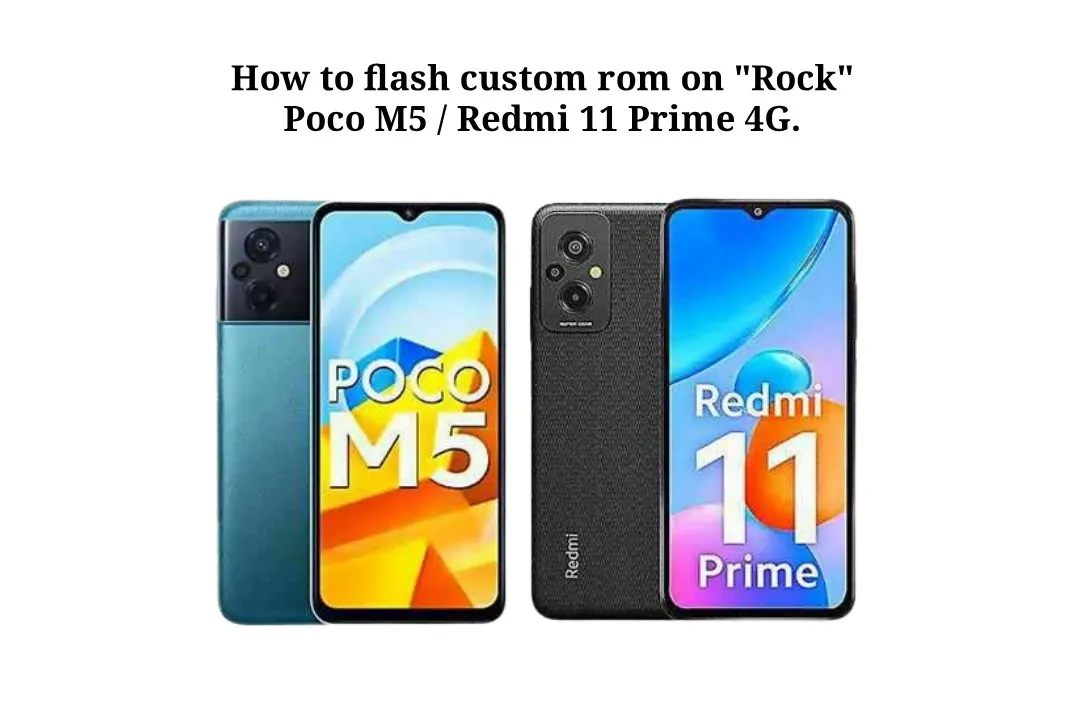
Device Information :
Device : Redmi 11 Prime / POCO M5
Codename : Rock
Release Date : 2022, September 05
Chipset : MediaTek Helio G99 (MT6789)
Shipped OS : 12.0 with MIUI 13 for POCO
RAM : 4 GB / 6 GB
Storage : 64 GB / 128 GB
Flash : UFS 2.2
Battery : 5000 mAh
Display : 6.58 inches, IPS LCD, 90Hz, 1080x2408 pixels
Rear Camera : Triple 50 MP (wide) + 2 MP (macro) + 2 MP (depth)
Front Camera : 5 MP (wide)
NFC : Rock (No), Stone (Yes)
** Installation Guide **
** From Stock Rom -MiUi-14/HyperOS **
-
Install ADB & Fastboot driver.
-
Download rom.zip and move in your SD Card / USB Flash Drive / Computer.
-
Enter fastboot mode by using a key combination Power + Vol Down, or use adb command; adb reboot bootloader.
-
Connect your device to your PC via USB.
-
Verify that your PC detects the device with fastboot devices.
-
Flash OrangeFox/TWRP image into your device using fastboot flash vendor_boot filename.img.
-
Reboot into recovery mode by holding Power + Vol Up.
-
Go to the wipe section and format data to type yes.
-
Go to the install section and go to the storage section where you keep rom.zip, select Rom.zip and flash it.
-
If you see “assert failed: update_dynamic_partition(package_extract_file) ********* Updater process ended with ERROR: 1” then go to menu and “Unmap Super”. And then install it again.
-
Reboot to system.
** From Custom rom. **
-
Install ADB & Fastboot driver.
-
Download rom.zip and vendor_boot.img from the download link and move rom.zip in your SD Card / USB Flash Drive / Computer, also copy vendor_boot.img in your computer.
-
Enter fastboot mode by using a key combination Power + Vol Down, or use adb command; adb reboot bootloader.
-
Connect your device to your PC via USB.
-
Verify that your PC detects the device with fastboot devices.
-
Flash provided vendor_boot image into your device using “fastboot flash vendor_boot vendor_boot.img”
-
Reboot into recovery mode by holding Power + Vol Up.
-
Go to the Factory Reset section and format data, and return to the main menu.
-
Go to the “Apply update” option and select rom.zip from your SD Card where you keep the rom. or use “Apply from ADB” option to flash rom.zip using your pc. Command: adb sideload rom.zip.
-
Reboot to system.
Troubleshooting :
If you encounter any issues during or after the installation, feel free to ask our chat group for solutions to common problems.
Join & Follow : Group | Channel.
©Shakib 🇧🇩
Телефон в bootloop? Чиню удалённо — смотрите услуги ремонта.
No fix, no pay — remote support worldwide.
Похожие записи
Project Matrixx v11.6.0-Trigon Android 15 – UNOFFICIAL Custom Rom for Poco M5 / Redmi 11 Prime 4G (rock)
Android : 15.2 \[V\] Device : Poco M5 / Redmi 11 Prime 4G Build Date : 01.07.2025 Maintainer : 𝘚𝘩𝘢𝘬𝘪𝘣 🦄

CrDroid v11.6 Android 15 – UNOFFICIAL Custom Rom for Poco M5 / Redmi 11 Prime 4G (rock)
Android : 15.2 \[V\] Device : Poco M5 / Redmi 11 Prime 4G Build Date : 25.06.2025 Maintainer : 𝘚𝘩𝘢𝘬𝘪𝘣 🦄

PixelOS Custom Edition Rom for Redmi Note 12 Pro 4G (sweet_k6a)
Android : 15 \[V\] Device : Redmi Note 12 Pro 4G Build Date : 24/06/2025 Maintainer : Shakib