Redmi Note 11 4G NFC (Spens) Bootloader Unlock Guide | How to Unlock Bootloader
 Shakib's Universe
- Video Tutorial
- Overview: Redmi Note 11 4G NFC (Spens)
- Prerequisites & Requirements
- Step-by-Step Bootloader Unlock Guide
- Step 1: Enable Developer Options & OEM Unlocking
- Step 2: Bind Mi Account in Mi Unlock Status
- Step 3: Boot into Fastboot Mode
- Step 4: Unlock Using Official Mi Flash Unlock Tool
- Troubleshooting Common Errors
- Remote Unlock & Unbrick Service
- Important Safety Warning & Disclaimer
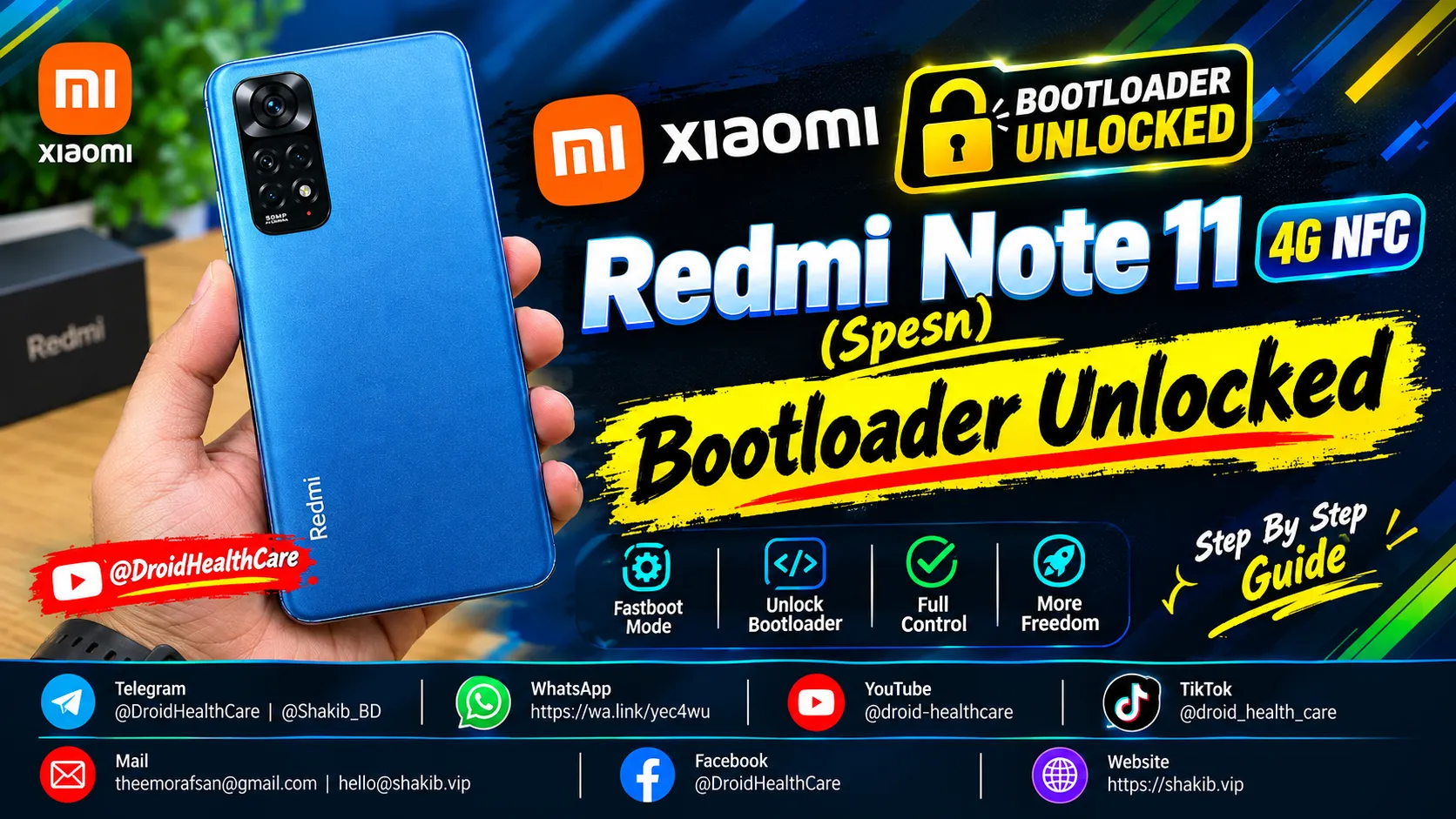
Unlocking the bootloader on your Redmi Note 11 4G NFC (codenamed “spens”) is the essential first step before flashing custom ROMs, installing custom recoveries like TWRP/OrangeFox, rooting with Magisk or KernelSU, or restoring a soft-bricked device from bootloop.
This comprehensive guide covers device prerequisites, the official Mi Unlock procedure, fixes for common authorization errors, and a full video walkthrough.
Video Tutorial
Watch the step-by-step video demonstration of unlocking the Redmi Note 11 4G NFC bootloader:
Overview: Redmi Note 11 4G NFC (Spens)
The Redmi Note 11 4G NFC (model codename spens) is powered by the MediaTek Helio G88 (MT6769H) processor. It is distinct from the standard Redmi Note 11 (“spes”) which uses Qualcomm Snapdragon 680.
Whether your unit is running MIUI 13, MIUI 14, or Xiaomi HyperOS, unlocking the bootloader allows you to:
- Flash international, European (Xiaomi.eu), or customized custom ROMs.
- Root the device for system tweaks, performance enhancements, and audio mods.
- Unbrick and restore firmware via Fastboot or SP Flash Tool.
- Fully control system partitions and remove pre-installed bloatware.
Prerequisites & Requirements
Before starting the unlock process, ensure you have prepared the following:
- Active SIM Card with Mobile Data: The SIM card linked to your Mi Account must be inside the phone. Adding the account in Developer Options requires mobile data (Wi-Fi will fail).
- Mi Account: A verified Mi Account signed in on your phone for at least 15 to 30 days.
- Complete Backup: Unlocking the bootloader triggers a factory reset and wipes all internal storage. Back up your photos, contacts, and personal data to cloud storage or an external PC.
- Windows PC & Data Cable: A desktop or laptop running Windows 10/11 with an official or high-quality Type-C USB cable (plugged into a rear motherboard USB 2.0 port).
- Battery Above 60%: Ensure adequate battery life to prevent the device from powering off during fastboot operations.
Step-by-Step Bootloader Unlock Guide
Follow these steps carefully to bind your device and unlock the bootloader.
Step 1: Enable Developer Options & OEM Unlocking
- Open Settings on your Redmi Note 11 4G NFC.
- Go to About Phone and tap repeatedly (7 times) on MIUI version or OS version until you see the message “You are now a developer!”.
- Return to the main Settings menu, scroll down, and select Additional Settings > Developer Options.
- Scroll down and toggle ON both OEM Unlocking and USB Debugging.
Step 2: Bind Mi Account in Mi Unlock Status
- In Developer Options, tap on Mi Unlock Status.
- Tap Agree to the terms.
- Turn OFF Wi-Fi and make sure Mobile Data is switched ON on your primary SIM.
- Tap Add account and device.
- Wait for the confirmation toast message: “Added successfully. Mi Account is associated with this device now.”
Warning: Do not sign out of your Mi Account, factory reset the phone, or toggle OEM unlocking off after this step, or the timer will reset.
Step 3: Boot into Fastboot Mode
- Turn off your Redmi Note 11 4G NFC completely.
- Press and hold the Volume Down (-) and Power buttons together for 5–7 seconds.
- Release the buttons once the orange FASTBOOT logo appears on screen.
- Connect the phone to your Windows PC using your USB cable.
Step 4: Unlock Using Official Mi Flash Unlock Tool
- Download the latest official Mi Flash Unlock Tool on your PC and extract the zip archive.
- Right-click
miflash_unlock.exeand select Run as Administrator. - Sign in using the exact same Mi Account credentials that are bound to your phone.
- The tool will check server permissions and verify connection with your device (“Phone connected”).
- Click Unlock and confirm the safety prompts.
- The progress bar will count to 100%. If your account is subject to a waiting period, the tool will display the countdown (e.g., Please unlock 168 hours later). Once the time passes, repeat this step to complete the unlock instantly.
Troubleshooting Common Errors
| Error Message / Code | Cause | Resolution |
|---|---|---|
| Error 86012 / 86023 | Network binding mismatch or server glitch | Turn off Wi-Fi, toggle Airplane mode, and re-bind using SIM mobile data only. |
| 168 Hours / 360 Hours Wait | Standard Xiaomi security cooldown period | Keep the phone in normal use with the SIM inserted until the countdown expires. |
| HyperOS Permission Required | New HyperOS bootloader restriction | Requires Level 5 Xiaomi Community account or remote auth bypass service. |
| Fastboot Not Recognized (AMD) | USB 3.0 / AMD chipset driver incompatibility | Use a USB 2.0 port, a basic USB hub, or install the latest MediaTek fastboot drivers. |
Remote Unlock & Unbrick Service
If your device is stuck in a bootloop, experiencing authorization errors, or you need to bypass waiting periods without dealing with account errors:
- Remote Bootloader Unlock: Check our Xiaomi Bootloader Unlock Service for remote online sessions via PC and AnyDesk.
- Bootloop & Brick Repair: Visit our Xiaomi Bootloop & Unbrick Service if your phone cannot access the system.
- Direct Consultation: You can book an appointment directly through our Booking Portal.
Important Safety Warning & Disclaimer
- Unlocking the bootloader automatically erases all internal storage.
- Widevine DRM status may switch from L1 to L3 on select builds, which may limit streaming services (Netflix, Amazon Prime) to standard definition (SD).
- Always verify your device ownership before requesting remote flashing or unlock assistance.
Phone bootloop? I fix it remotely — see repair services.
No fix, no pay — remote support worldwide.
Updated on

Related Posts
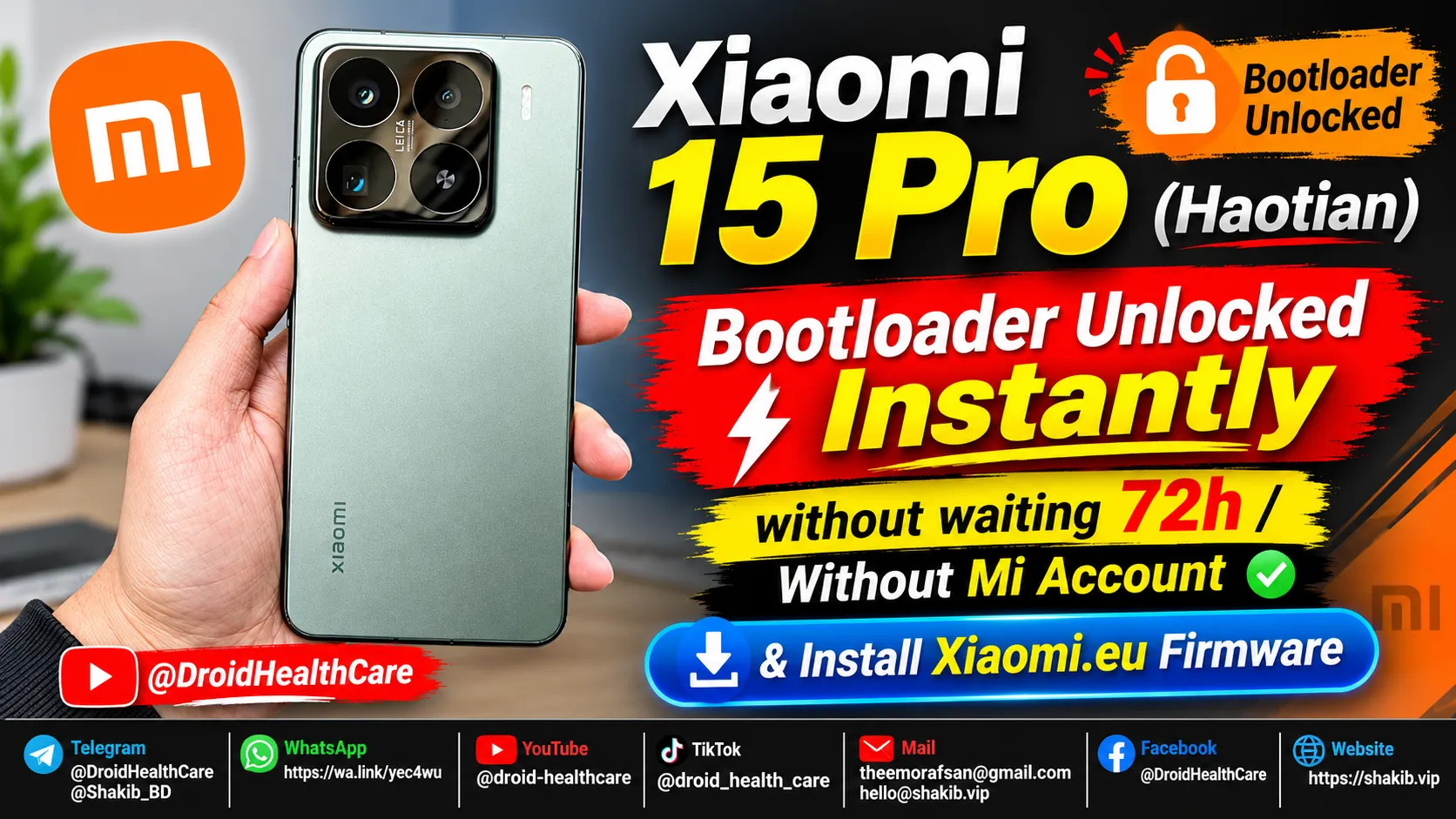
Xiaomi 15 Pro (Haotian) Instant Bootloader Unlock Instantly & Install Xiaomi-EU Firmware
How to unlock Bootloader Xiaomi 15 Pro (Haotian) Chinese region device? bootloader unlock xiaomi 15 pro in 2026.
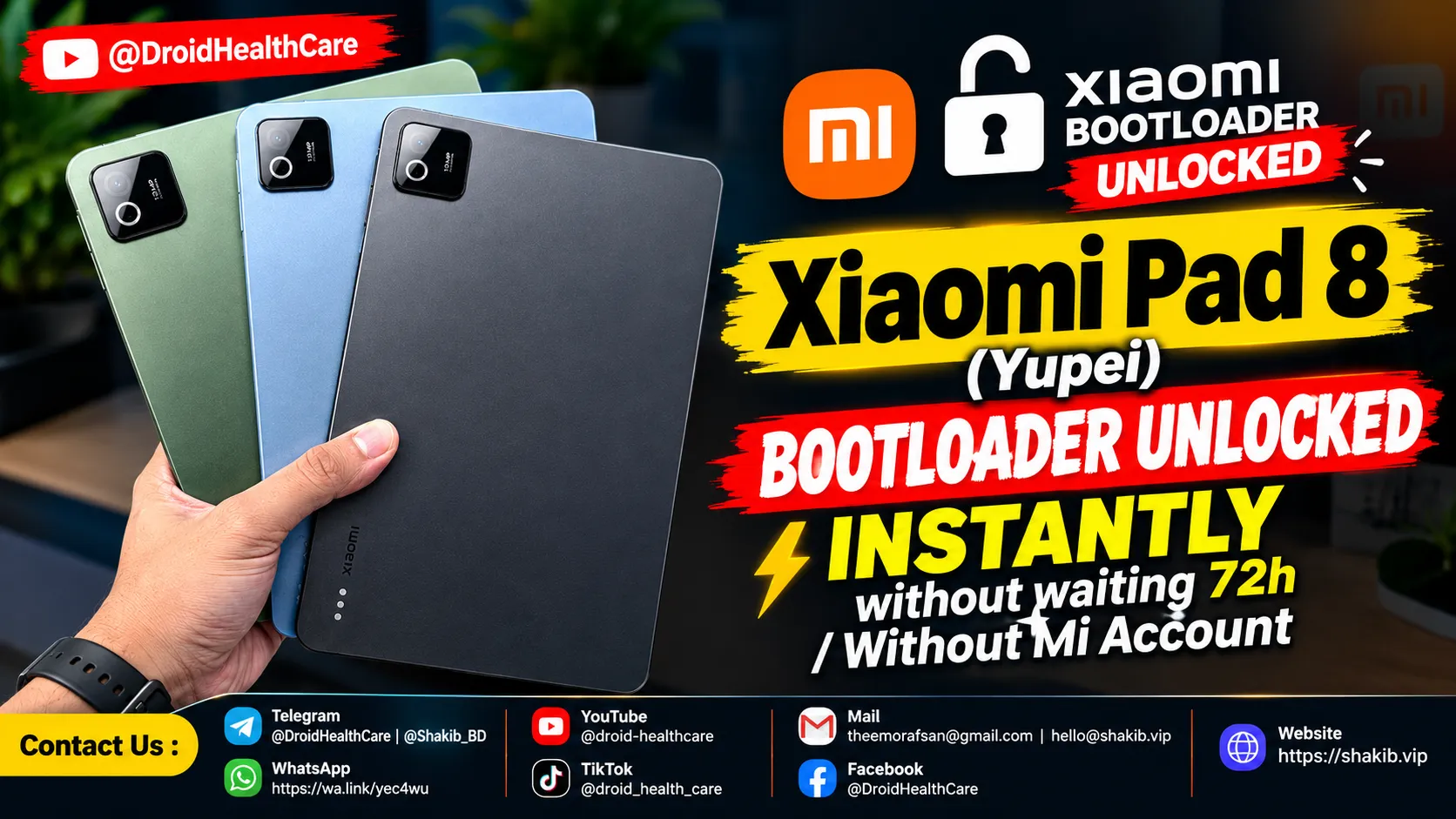
Xiaomi Pad 8 (Yupei) Bootloader Unlock Instantly, No Need Mi Community Permission, No Need Mi Account. (Paid Service)
Bootloader Unlock Xiaomi Pad 8 (Yupei) | How to Unlock Bootloader Xiaomi Pad 8
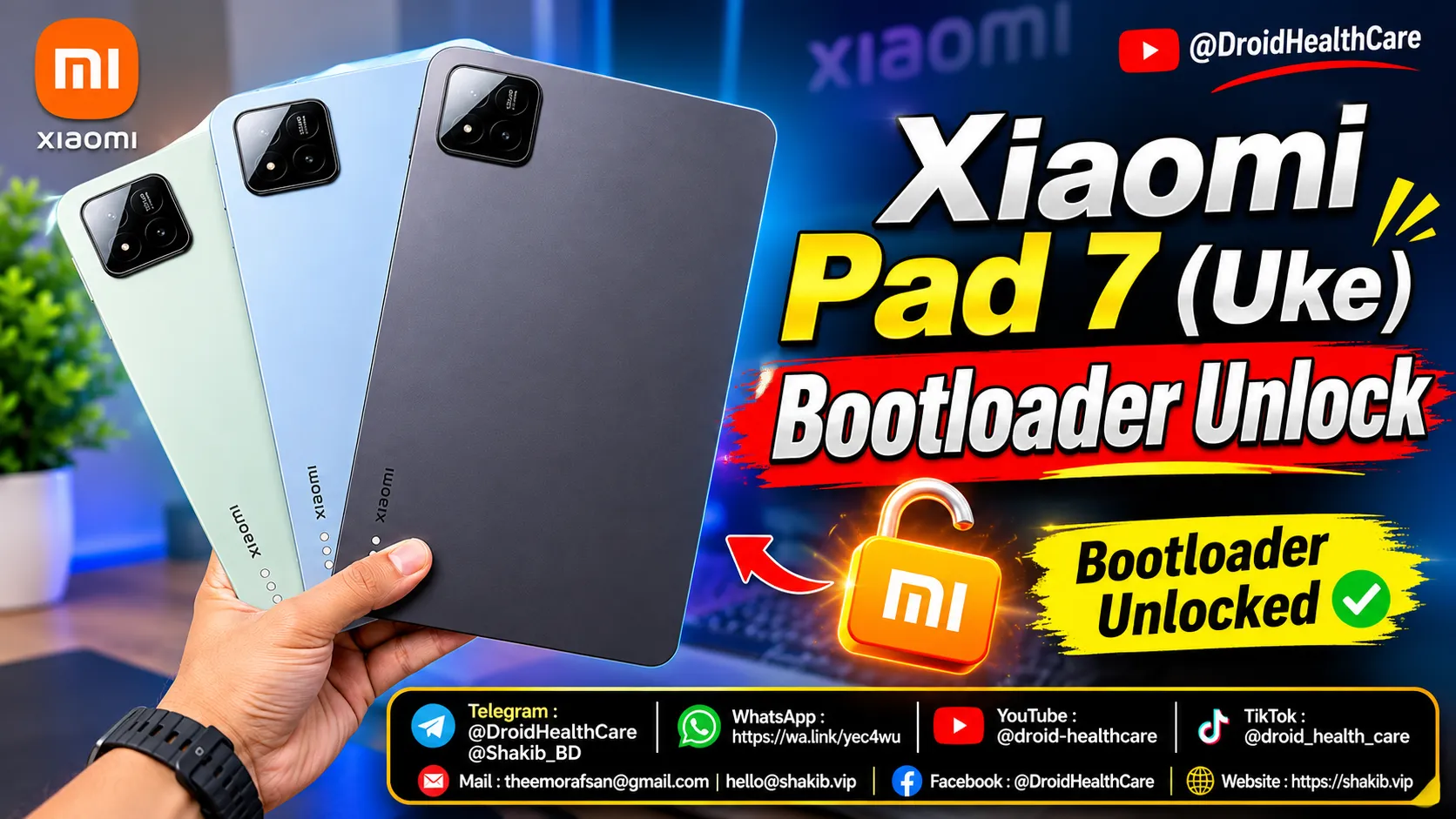
How to unlock bootloader of Xiaomi Pad 7 (Uke) | Xiaomi Pad 7 Bootloader Unlock (Paid Service)
Xiaomi Pad 7 (Uke) Bootloader Unlock Paid Service 2026. How to Unlock Bootloader Xiaomi Pad 7 (Uke)?